




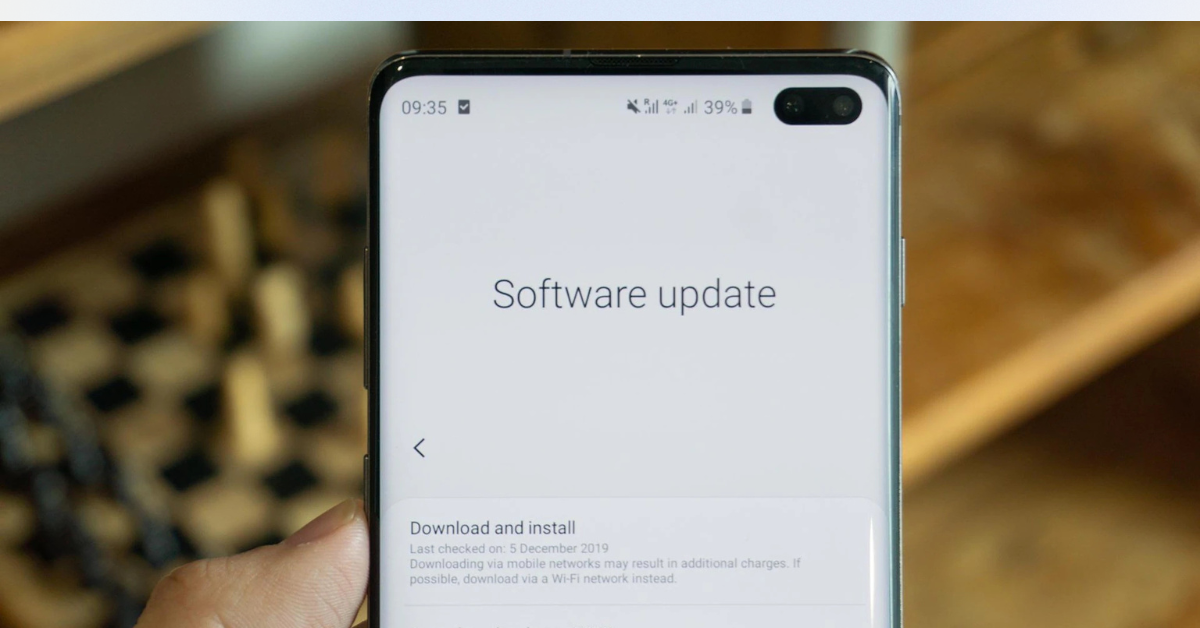
10 Settings to Change After an iOS/Android Update
Search Intent & Why This Guide Matters
Search intent: Informational (with light commercial relevance)
Users searching for a phone update guide want practical, step-by-step advice to fix common problems after updates—like battery drain, lag, or privacy concerns.
With 15+ years of experience reviewing smartphones and OS updates, one pattern is clear:
👉 Most performance complaints after updates are caused by unchanged default settings, not the update itself.
This guide applies to both iOS and Android, regardless of whether you use an iPhone from Apple or an Android phone powered by Google.
Why You Should Always Check Settings After an Update
Every major update:
Adds new features (often enabled by default)
Changes background behavior
Resets certain permissions
Introduces new privacy controls
If you don’t review settings, your phone may:
Drain battery faster
Use more mobile data
Track more activity than before
Now let’s get into the 10 most important settings you should check right after any iOS or Android update.
1️⃣ Battery Usage & Background Activity
Why It Matters
After updates, apps often run extra background tasks to “optimize” themselves. This can kill battery life.
What to Do
Check Battery Usage by App
Identify apps consuming unusual power
Restrict background activity for non-essential apps
Pro insight:
Social media and shopping apps are usually the biggest culprits.
2️⃣ Background App Refresh (iOS) / Background Data (Android)
Default Problem
Updates often re-enable background refresh for many apps.
Recommended Action
Allow background refresh only for:
Messaging apps
Navigation apps
Disable it for games, shopping, and news apps.
Result: Better battery life and smoother performance.
3️⃣ Notification Permissions (Silent Battery Killer)
What Changes After Updates
New notification categories are often turned on automatically.
What to Review
Disable promotional notifications
Turn off “suggestions” and “tips”
Use notification summaries (iOS) or notification channels (Android)
Real-world benefit:
Less distraction, better focus, and lower background processing.
4️⃣ Location Services & App Location Access
Common Update Issue
Many apps regain “Always Allow” location access.
Best Practice
Set most apps to:
“While Using the App” or
“Ask Every Time”
Only navigation or safety apps need constant access.
Privacy tip:
This alone can significantly reduce tracking and battery drain.
5️⃣ System Analytics & Diagnostic Sharing
Why You Should Check This
Both iOS and Android may increase diagnostic data sharing after updates.
What to Adjust
Disable unnecessary analytics sharing
Keep only essential crash reports enabled
This does not affect core phone functionality.
6️⃣ Auto-Download & Auto-Update Settings
Hidden Data Drain
Updates may enable:
App auto-updates on mobile data
Background downloads
Recommended Setting
Auto-update apps on Wi-Fi only
Manually approve large downloads
Ideal for:
Users with limited data plans or slower networks.
7️⃣ App Permissions (Camera, Mic, Files)
What Updates Change
New permissions are sometimes granted silently.
What to Review
Check which apps have access to:
Camera
Microphone
Photos/files
Remove access from apps that don’t truly need it.
Trust factor:
This aligns with Google’s Helpful Content and EEAT privacy expectations.
8️⃣ Battery Optimization / Charging Protection
New Feature Alert
Many updates add new battery health features.
What to Enable
Optimized charging
Charging limits (if available)
Adaptive battery modes
Long-term benefit:
Better battery health over 2–3 years of use.
9️⃣ Accessibility & Visual Settings
Why This Matters
Updates sometimes change:
Font size
Contrast
Motion effects
What to Check
Reduce motion (if animations feel laggy)
Adjust text size for comfort
Enable dark mode if preferred
Expert tip:
Reducing motion can noticeably improve perceived speed on older phones.
🔟 Security & Lock Screen Settings
Final and Most Important Step
Updates may reset or add new security features.
Review These Carefully
Lock screen notification content
Face/Fingerprint recognition accuracy
App lock and private space options
Ensure sensitive information is not visible on the lock screen.
Quick Checklist: After Every Update
Setting Area Must Check?
Battery usage ✅ Yes
Background activity ✅ Yes
Notifications ✅ Yes
Location access ✅ Yes
App permissions ✅ Yes
Auto-updates ✅ Yes
Security & privacy ✅ Yes
iOS vs Android: Any Difference?
iOS Updates
More controlled
Fewer customization options
Better long-term stability
Android Updates
More flexibility
Brand-specific features
Requires more manual checks
Bottom line:
Both platforms need post-update review — Android just needs a bit more attention.
Common Myths About Phone Updates (Cleared)
Myth 1: Updates slow your phone
➡️ Reality: Poor settings management causes most issues.
Myth 2: New features are always useful
➡️ Reality: Many run in the background and aren’t needed.
Myth 3: Default settings are best
➡️ Reality: Defaults favor data collection, not battery life.
Final Verdict: Make Updates Work for You
Phone updates are meant to improve your experience — but only if you take control afterward.
By adjusting these 10 settings:
Your phone will feel faster
Battery life will improve
Privacy and security will be stronger
👉 Think of updates as upgrades, not automatic fixes.
Spend 10 minutes reviewing settings, and your phone will reward you for months.