




Home Wi-Fi Security Checklist (router settings that matter)
Why Home Wi-Fi Security Matters More Than Ever
In 2026, your home Wi-Fi network is more than internet access.
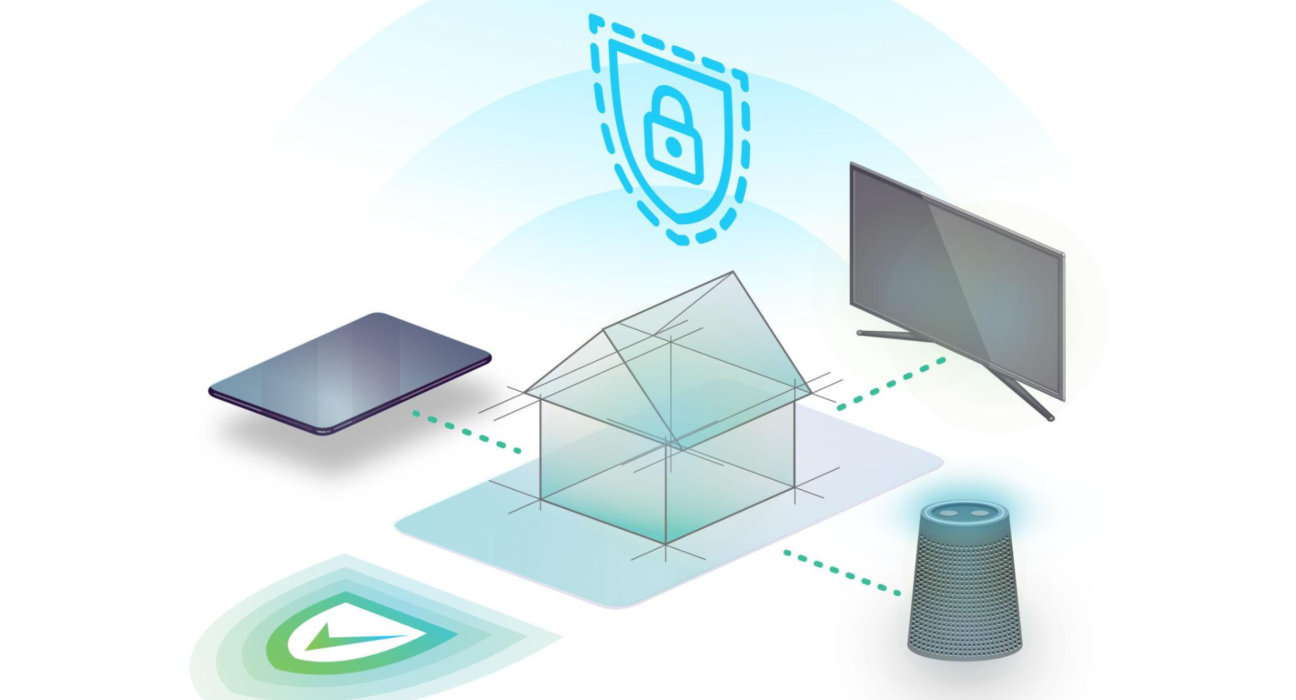
It connects laptops, phones, smart TVs, cameras, voice assistants, printers, and even door locks.
If your router is misconfigured, everything connected to it becomes exposed.
The good news?
Most Wi-Fi security issues come down to a handful of router settings—and fixing them takes less than an hour.
This checklist focuses on what actually matters, not fear-based advice or technical overload.
Understanding the Real Risk (Plain English)
Hackers rarely “break in” like in movies.
They look for:
Default passwords
Outdated firmware
Weak encryption
Open remote access
Poor device isolation
Your goal is simple: remove easy entry points.
Home Wi-Fi Security Checklist (Step-by-Step)
- Change Default Router Login Credentials (Non-Negotiable)
Most routers ship with:
Username: admin
Password: admin / password
This information is publicly available.
What to Do
Change the router admin username
Use a strong, unique password
Store it securely (password manager)
Why it matters:
Even if Wi-Fi is protected, an exposed admin panel can compromise the entire network.
- Enable the Strongest Wi-Fi Encryption Available
Encryption protects data traveling between devices and your router.
Use This (In Order of Preference)
WPA3-Personal (best)
WPA2-AES (acceptable)
❌ Avoid WPA, WEP, or “mixed mode” if possible
Real-world insight:
Encryption doesn’t slow modern networks. Weak encryption does invite silent attacks.
- Rename Your Wi-Fi Network (SSID) Smartly
Your network name shouldn’t reveal:
Your name
Address
Router brand or model
Better SSID Examples
HomeNet_24
PrivateWiFi
Avoid
Rahul_5G
TPLink_Archer_C6
This small change reduces targeted attacks.
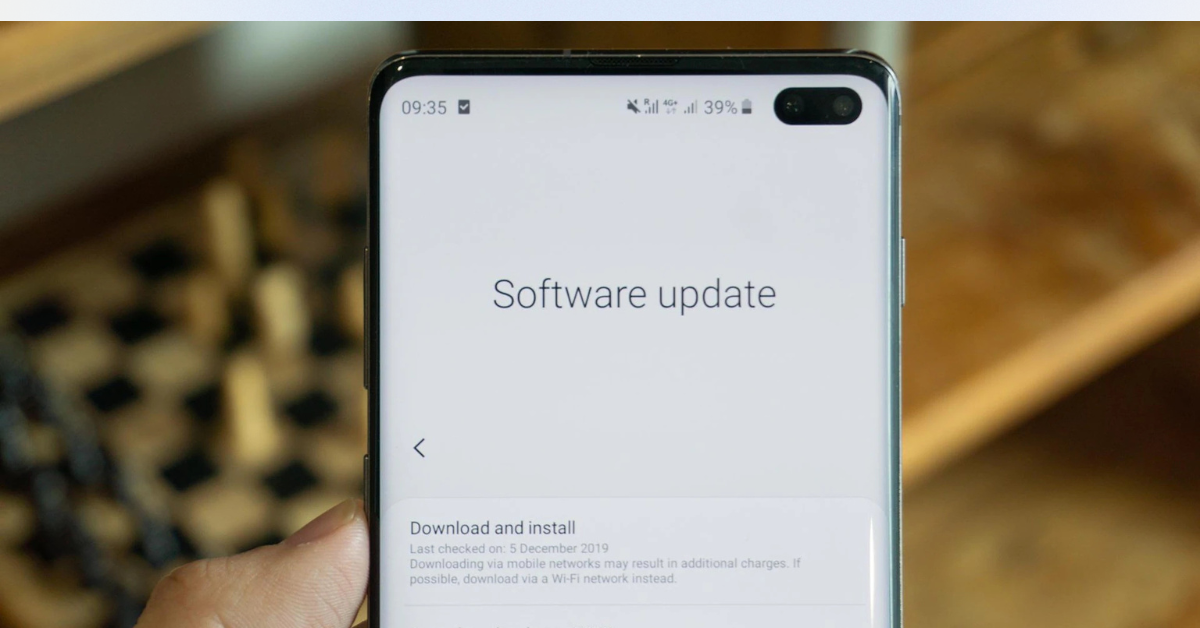
- Update Router Firmware Regularly
Router firmware updates fix:
Known vulnerabilities
Stability issues
Performance bugs
Yet many routers run years-old software.
Best Practice
Enable automatic firmware updates
If manual, check every 2–3 months
Experience-based tip:
Outdated firmware is one of the most common causes of real-world Wi-Fi breaches.
- Disable Remote Management (Unless You Truly Need It)
Remote management lets you access your router from outside your home.
Recommendation
Turn it OFF for home users
Enable only if you fully understand port security
For most households, this feature adds risk—not convenience.
- Turn On a Guest Network (And Use It Properly)
A guest network isolates visitors’ devices from your main network.
Use Guest Network For:
Friends’ phones
Visitors’ laptops
Smart home installers
Configure It Correctly
Separate password
No access to local devices
Auto-disable if possible
This protects personal files and smart devices from accidental exposure.
- Disable WPS (Wi-Fi Protected Setup)
WPS uses a PIN or button to connect devices quickly.
Sounds helpful—but it’s a known weak point.
Why Disable WPS
Vulnerable to brute-force attacks
Rarely needed today
Most devices connect easily via password
Security checklist rule: If you don’t use it, turn it off.
- Review Connected Devices Regularly
Most routers show a list of connected devices.
What to Look For
Unknown device names
Old phones you no longer use
Devices connected at odd hours
If something looks unfamiliar:
Disconnect it
Change Wi-Fi password immediately
This habit alone prevents long-term unnoticed access.
- Secure Smart Home & IoT Devices
Smart devices often have weaker security than phones or laptops.
Best Practices
Keep them on a separate network or VLAN
Update device firmware
Change default device passwords
Disable unused features
Real example:
Unsecured smart cameras are one of the most common entry points into home networks.
- Enable Built-In Firewall & Threat Protection
Most modern routers include:
SPI firewall
Intrusion detection
Basic threat blocking
These are usually OFF by default.
Action Step
Enable all built-in security protections
Avoid “gaming mode” settings that disable firewalls
You’ll rarely notice a speed difference—but you will gain protection.
Router Settings That Matter vs Those That Don’t
Setting Security Impact Priority
Admin password Very High Must-do
WPA3 encryption Very High Must-do
Firmware updates High Must-do
Guest network Medium Recommended
WPS Medium Disable
Channel width Low Optional
DNS speed tweaks Low Performance only
Focus on risk reduction, not cosmetic tweaks.
Common Wi-Fi Security Myths (Debunked)
❌ “My network is safe because I don’t see issues”
Many breaches are silent and long-term.
❌ “Strong Wi-Fi password is enough”
Not if admin access or firmware is exposed.
❌ “Hackers don’t target home Wi-Fi”
Automated attacks scan millions of routers daily.
Security isn’t about paranoia—it’s about basics done right.
How Often Should You Review Wi-Fi Security?
Use this simple schedule:
Monthly: Check connected devices
Quarterly: Review router settings
Yearly: Change Wi-Fi password
Consistency matters more than complexity.
Apartment vs House: Security Considerations
Apartments
High neighbor interference
More scanning attempts
Strong encryption is critical
Houses
More devices
Smart cameras & outdoor Wi-Fi
Guest network becomes more important
The checklist stays the same—the risk profile changes.
Is a New Router Required for Better Security?
Not always.
Upgrade only if:
Router doesn’t support WPA2-AES at minimum
No firmware updates available
No guest network or firewall options
Otherwise, proper configuration beats new hardware.
Final Verdict: The Home Wi-Fi Security Checklist That Actually Works
Home Wi-Fi security isn’t about advanced hacking tools.
It’s about locking the doors you already have.
By applying this home Wi-Fi security checklist and focusing on router settings that matter, you dramatically reduce risk—without slowing your internet or overcomplicating setup.
Secure Wi-Fi is quiet, invisible, and boring.
That’s exactly how it should be.