




Passkeys Explained (and how to turn them on)
Why Everyone Is Talking About Passkeys
Passwords are broken.
Even strong passwords can be:
Phished
Reused
Leaked in data breaches
Stolen via fake websites
Passkeys were created to fix these problems at the root.
In 2026, passkeys are no longer experimental. They are actively supported by Google, Apple, Microsoft, and many major apps and websites.
This guide explains passkeys in plain English, then shows you exactly how to turn them on.
What Are Passkeys? (Plain English Explanation)
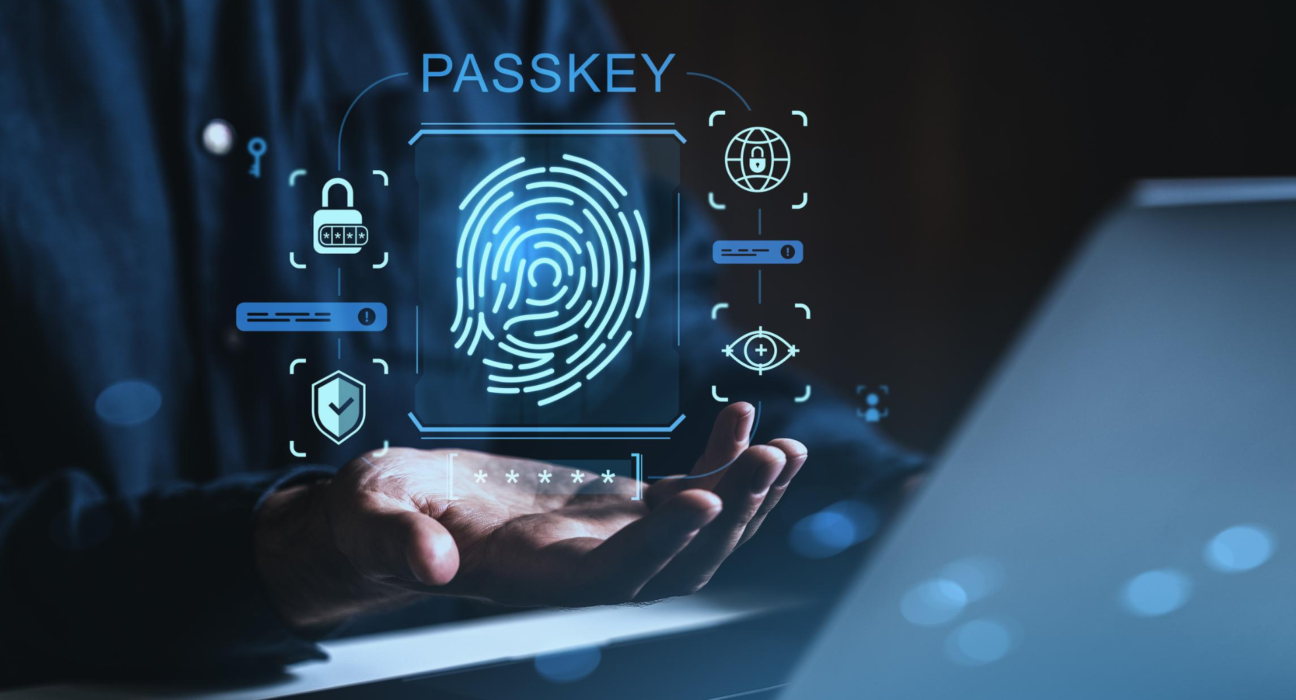
A passkey replaces your password with a secure digital key stored on your device.
Instead of typing a password:
You visit a website or app
Your device asks for Face ID, fingerprint, or screen lock
You’re logged in instantly
No password is typed.
No secret is sent over the internet.
That’s the core reason passkeys are safer.
How Passkeys Work (Without the Tech Jargon)
Here’s what happens behind the scenes:
Your device creates a private key (kept safely on your device)
The website stores a public key (useless on its own)
When you log in, your device proves it owns the private key
Biometric approval confirms it’s really you
Even if a website is hacked, attackers can’t log in—there’s no password to steal.
Passkeys vs Passwords: The Real Difference
Feature Passwords Passkeys
Can be guessed Yes No
Can be phished Yes No
Stored on servers Yes (hashed) No
Requires typing Yes No
Uses biometrics No Yes
Safer by default ❌ ✅
Passkeys remove the weakest link in security: human memory.
Why Passkeys Are More Secure (Real-World Reasons)
- Phishing Protection
Passkeys only work on the exact website they were created for.
Fake websites simply won’t trigger a login.
- No Reuse Problem
Each passkey is unique to one site.
One breach can’t affect other accounts.
- Nothing to Leak
Websites never receive your secret—only proof that you own it.
- Faster Than Passwords
No typing. No resets. No “wrong password” loops.
Security improves and login gets easier.
Are Passkeys Safe If You Lose Your Phone?
This is a common concern—and a valid one.
Passkeys are usually:
Synced securely across your devices
Protected by account recovery options
Backed up using encrypted cloud sync
For example:
Apple users recover passkeys via iCloud
Google users recover via Google Account
Password managers offer recovery keys
Pro insight:
Passkeys are safer than passwords even in device-loss scenarios.
Where Can You Use Passkeys Today? (2026)
Passkeys are already supported by:
Google accounts
Apple ID
Microsoft accounts
Major social platforms
Many banking, shopping, and productivity apps
Support is expanding steadily—but passwords still exist as fallback.
How to Turn On Passkeys (Step-by-Step)
Option 1: Turn On Passkeys in Your Account Settings
Most websites follow a similar flow:
Log in using your password (one last time)
Go to Security or Sign-in settings
Choose Create passkey or Use passkeys
Approve with biometrics or screen lock
That’s it. No extra app needed.
Option 2: Use Passkeys With Your Phone
Your phone often becomes the passkey itself.
Android: Uses device lock or fingerprint
iPhone: Uses Face ID or Touch ID
When logging in on another device, your phone can approve the login nearby.
Option 3: Use Passkeys With a Password Manager
Modern password managers can store and sync passkeys.
Benefits include:
Cross-platform access
Backup options
Easier switching between devices
This is ideal if you use Windows, macOS, Android, and iOS together.
Passkeys on Different Platforms (What to Expect)
Android
Seamless biometric approval
Works across Chrome and supported apps
Syncs via Google Account
iPhone & iPad
Deep system integration
Extremely smooth Face ID flow
Syncs across Apple devices automatically
Windows
Supports passkeys via browsers
Works best with linked phone or password manager
Passkeys work best when your ecosystem is consistent—but they are improving across platforms.
Passkeys + Autofill: How They Work Together
Passkeys don’t replace everything overnight.
In practice:
Passkeys are used when available
Password autofill handles older sites
You don’t need to manage the difference manually
Good systems make this invisible to the user.
Common Passkey Myths (Debunked)
❌ “Passkeys are just saved passwords”
False. Passkeys never expose a password.
❌ “They only work online”
They work offline for local authentication too.
❌ “They’re less secure because of biometrics”
Biometrics never leave your device.
When You Should Start Using Passkeys
You should enable passkeys if:
The option is available
You use biometrics already
You want fewer login problems
You care about phishing protection
There’s almost no downside for regular users.
When You Might Still Need Passwords
Passwords may still be required:
On older websites
On legacy enterprise systems
During account recovery
This is a transition—not an overnight switch.
Passkeys and the Future of Logins
Over the next few years:
Passwords will slowly disappear
Passkeys will become default
Security will become simpler, not harder
This is one of the rare upgrades where convenience and security improve together.
Final Verdict: Passkeys Explained Simply
Passkeys are the biggest improvement to online security in decades.
They remove passwords, stop phishing, reduce breaches, and make logins faster—all without adding complexity for users.
If passkeys are available on your accounts today, turning them on is one of the smartest security upgrades you can make in 2026.